
This section includes step-by-step information about configuring reports user.
In the application server, go to Start > Administrative Tools > Internet Information Services (IIS) Manager.
In the left pane, navigate to [Computer Name] (CT_VM48 in the following example) > Sites > Default Web Site > FASTER.
Double click Application Settings.
Application Settings
Double-click the ReportsUrl and note the value.

Reports URL
In the Internet Explorer, open the ReportsUrl located in step 4.
When prompted, provide your login credentials.

Login credentials
The Reports Manager page of the Reports Server (SSRS) is displayed.
On the Reports Manager page, click Site Settings.
The SQL Server Reporting Services home page is displayed.

Site home page
In the left pane, click Security, and then click New Role Assignment on the Site Settings page.

Reports site new role assignment
On the New System Role Assignment page, in the Group or user name box, type the group or username.

New system role assignment
Select the desired roles, and then click OK.
The desired site roles are assigned.
On the Home page of Reporting Server Reporting Services, point to the Reports folder (Manatee_5_2_26 in the following example) and select Security in the drop-down list.
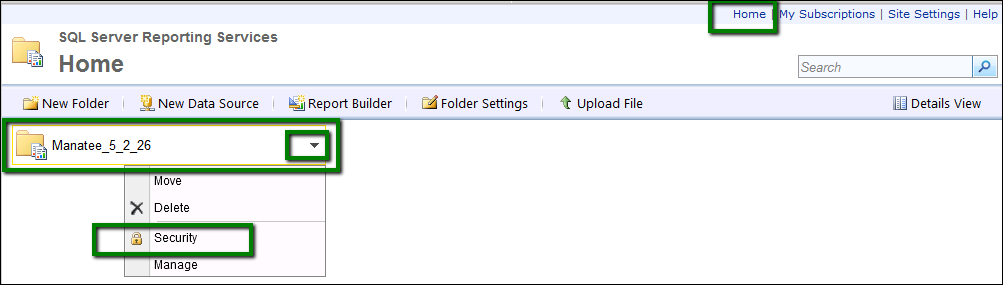
Reports folder security settings
On the reports folder security page, click New Role Assignment Role Assignment.

Reports folder new role assignment
In the Group or user name box, type the group or username.
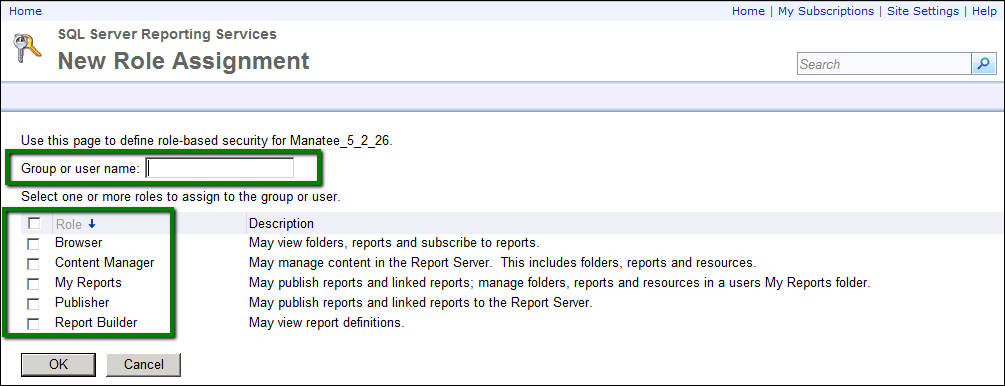
Reports folder role list
Select the desired roles, and then click OK.
Repeat the step 3 and 4 for each group or user who need to access and run reports.
All users who need to run FASTER Web reports must have at least the Publisher role assigned. If you have users who need to create custom reports, they must be granted additional roles based on your site’s policies.
Note: Make sure that all users added in Site Settings > Security > New Role Assignment are also added in Home > Reports Folder > Security > New Role Assignment.