Tip
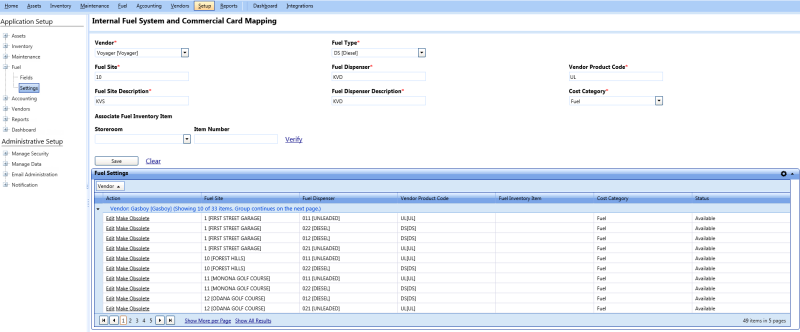
TipFrom the Internal Fuel System and Commercial Card Mapping page, you can map the fuel vendor with the respective fuel site and dispenser records in FASTER Web. Optionally, you can associate a fuel inventory item (fuel item number in a storeroom) with the fuel site - dispenser - vendor mapping for FASTER Web to automatically maintain inventory of fuel as and when the fuel is dispensed or added.
Note: You can associate a fuel inventory item with multiple fuel dispensers belonging to the same fuel site. However, the multiple fuel dispensers must contain the same fuel type.
Tip
To view the Internal Fuel System and Commercial Card Mapping page, click the Internal Fuel System and Commercial Card Mapping link.
2. In the Application Setup section, do one of the following:
Click  next to the Fuel option, and then click Settings.
In the Fuel section of Application Setup, click the Settings link.
The Manual Entry & Fuel Import Settings page opens.
3. Click the View link next to Fuel Vendor Mapping.
The Internal Fuel System and Commercial Card Mapping page opens.
1. Open the Internal Fuel System and Commercial Card Mapping page.
2. In the Vendor list, select a vendor.
3. In the Fuel Site box, type the location of the vendor.
4. In the Fuel Site Description box, type a description about the vendor location.
5. In the Fuel Type list, select the fuel type.
6. In the Fuel Dispenser box, type the name of the fuel dispenser.
7. In the Fuel Dispenser Description box, type a description about the fuel dispenser.
8. In the Vendor Product Code box, type the product code of the vendor.
9. In the Cost Category list, select the cost category.
|
Note: You can associate a fuel inventory item (storeroom and fuel item number) with the fuel vendor mapping. To create this association, ensure that you have permissions to the storeroom, the fuel item stock is currently available and it exists in the storeroom, and then do the following: 1. In the Storeroom list, select the store room where the fuel inventory is maintained. 2. In the Item Number box, type the item number of the fuel item. 3. Click the Verify link. o If the item number exists in the selected storeroom, the Storeroom and the Item Number fields are disabled. o If the item number does not exist in the selected storeroom, or you do not have permissions to the storeroom, an error message is displayed. You can add a fuel item to the appropriate storeroom from the Inventory module of FASTER Web, and then associate the fuel inventory item with the fuel vendor mapping. After successful association of a fuel inventory item with the fuel vendor mapping, the |
10. When finished, click one of the following:
o Save to save the information.
The Fuel Settings section displays the saved information in the respective vendor grid.
o Clear to disregard the information added.
1. Open the Internal Fuel System and Commercial Card Mapping page.
2. In the Fuel Settings section, click  next to a vendor name.
The fuel site details added for that vendor are displayed in a grid.
3. Click the Edit link next to a fuel site.
The information is populated in the respective fields.
4. Make changes as required.
5. When finished, click one of the following:
Save to save the information.
Clear to disregard any changes made.
1. Open the Internal Fuel System and Commercial Card Mapping page.
2. In the Fuel Settings section, click next to a vendor name.
The fuel site details added for that vendor are displayed in a grid.
3. Click the Make Obsolete link next to a fuel site.
The fuel system and vendor mapping becomes obsolete.
Note: After you make a fuel system and vendor mapping obsolete, the Make Obsolete link is replaced with the Make Available link. You can click the Make Available link to activate the mapping as required.