Tip
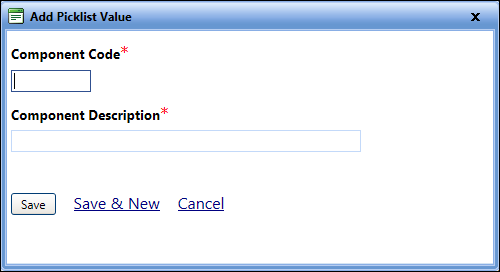
TipIn the Add Picklist Value dialog box, you can add the details of a new repair component.
Tip
To view the Add Picklist Value dialog box, click the Add Picklist value link.
1. Click the Setup module.
2. In the Application Setup section, do one of the following:
o Click  next to the Maintenance option, and then click Repair Codes.
o In the Maintenance section of Application Setup, click the Repair Codes link.
The Repair Codes page opens.
3. Click the Component tab, and then click Add New Repair Component.
The Add New Repair Component dialog box opens.
4. In the Component Code box, type the component code.
5. In the Component Description box, type a brief description about the component.
6. When finished, click one of the following
o Save to save the information and close the dialog box.
o Save & New to save the information and add another record.
o Cancel to disregard any changes and close the dialog box.