Tip
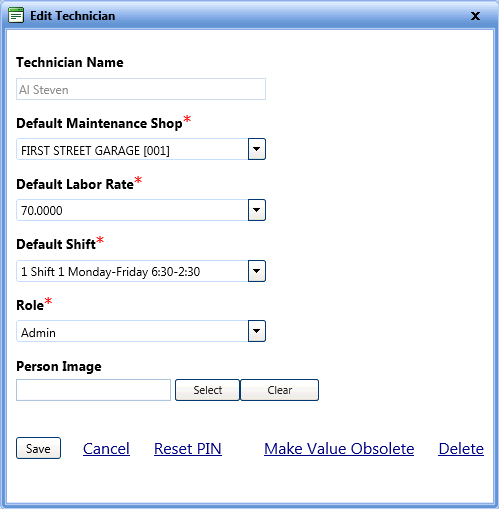
TipThe Edit Technician dialog box lets you edit the details of technicians.
Tip
To view the Edit Technician dialog box image, click the Edit Technician link.
1. Click the Setup module.
2. In the Application Setup section, do one of the following:
o Click  next to the Maintenance option, and then click Technician.
o In the Maintenance section of Application Setup, click the Technicians link.
The Technicians page opens.
3. Click the Edit link next to a technician record that you want to edit.
The Edit Technician dialog box opens.
4. In the Default Maintenance Shop, Default Labor Rate, Default Shift, Rate, and Person image fields, modify the data, if required.
Note:Technician's name cannot be modified.
5. When finished, click one of the following:
o Save to save the information and close the dialog box.
o Cancel to disregard any changes and close the dialog box.
o Reset PIN to change the technician's PIN number.
o Click Male Value Obsolete to hide technician details from the Technician list of Maintenance module.
o Click Delete to permanently remove the technician from the Technician list of Maintenance module.