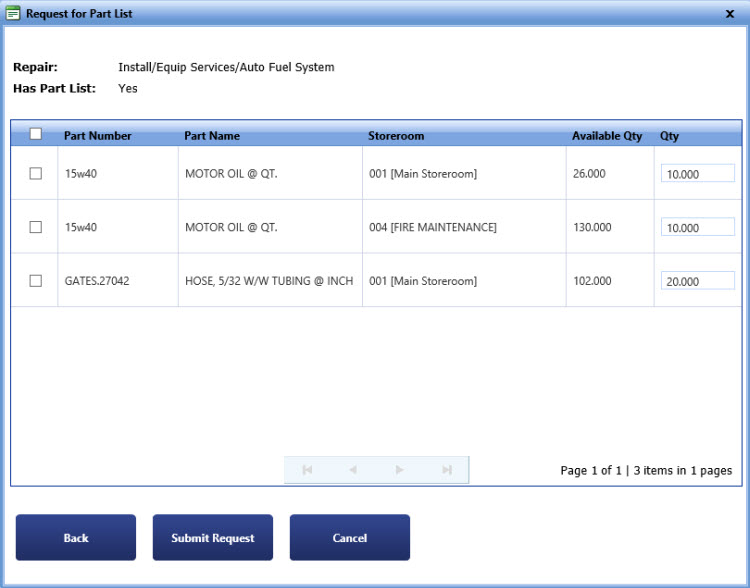
The Request for Part List dialog box lets you request multiple parts from the part list of the repair.
Request for part list
Sign In to TWS.
Select a repair and click Begin Selected Repair.
The My Work Order Repair page opens.
The Select Repair to Request Parts dialog box opens.
4. Select a repair which has a part list, and then click Load Part List.
The Request for Part List dialog box opens.
5. Click the check box next to the part that you want to request.
6. In the Qty box, type the quantity of the part that you want to order.
Note: The Qty field displays the default quantity of the part.
7. Click Submit Request.
|
Note: · Click Back to go to the Select Repair to Request Parts dialog box. · Click Cancel to disregard any changes and close the dialog box. |